Skip to content
English
  • There are no suggestions because the search field is empty.

How to Add Music to your TikTok posts

You can now add Trending Music to your TikTok images and videos using the new planning experience on web dashboard.


How to switch into the New Experience

  1. Log into your account on web and switch into your Multi-Channel Workspace
  2. From the top navigation bar you have the option to try our new planning and posting experience by clicking the try Beta icon 
    Screenshot 2026-03-11 at 3.34.38 PM
  3. Once you click the link, you will be switched into the new experience
    Screenshot 2026-03-11 at 3.36.06 PM
  4. You can always switch back by clicking the Switch back to classic planner link next to your social channels

How to add music to your TikTok posts

  1. Now that you are in the new experience, you will click Create, then New Post
  2. Select TikTok from the social channel dropdown
  3. Upload your media for video, single image, or carousel
  4. Create your caption, add hashtags, etc.
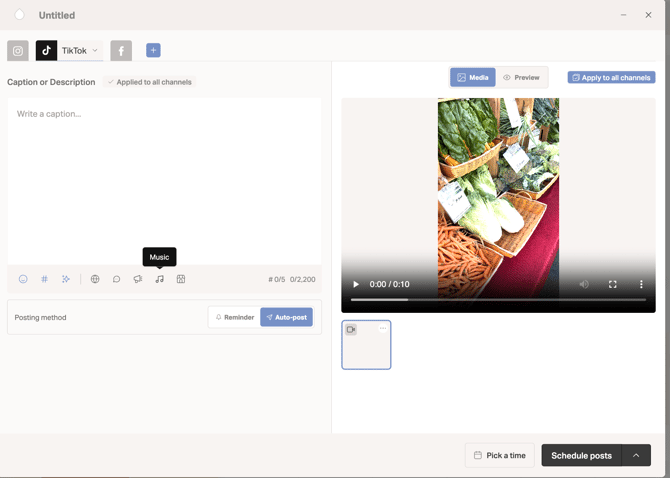
  5. You also have the option to toggle on or off comments as well as flag branded content
  6. Choose Auto-Post from the dropdown and select a date you want to auto-post this or select a date for your reminder notification if you choose that option
  7. Once complete, scroll down to choose from the "Additional Channel Options" drop down to add any details and trending music
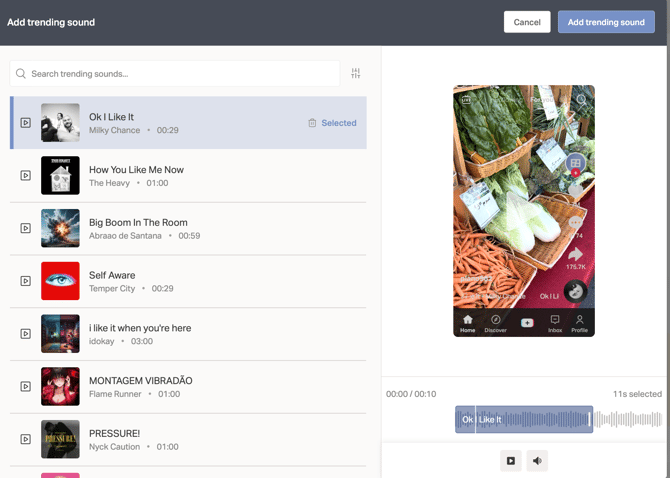
  8. Click on Add trending sound
  9. You will now have the option to search for trending sounds, listen and add
    1. For images ,you can Choose a Song OR Let TikTok choose
    2. For videos, you can Choose a Song
      Screenshot 2026-03-11 at 3.43.59 PM


Once you select your sound, click Add trending sound and finish scheduling your post!


Adding trending sound on mobile is coming soon!