
How It Works
When enabled, clients will be able to:
- Reschedule their booking to a new available time
- Cancel their booking if they can no longer attend
You stay in control by setting how much notice is required before changes can be made.
How to Set It Up
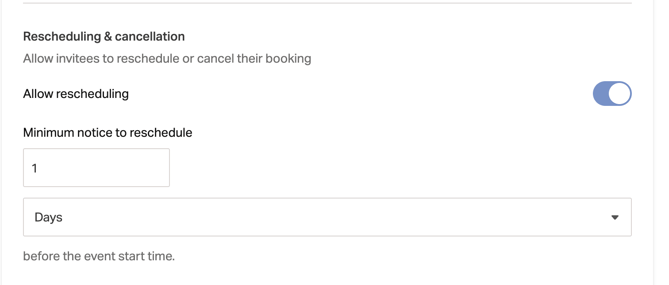
1. Enable Rescheduling
- In your 1:1 Consultation go to the Event Tab
- Scroll down to Rules of Availability > Rescheduling & Canceling
- Toggle “Allow rescheduling” ON
- Set the minimum notice required before a client can reschedule
- Save and Continue
Example:
If you set 1 day, clients must reschedule at least 24 hours before their appointment start time.
2. Enable Cancellation
- In your 1:1 Consultation go to the Event Tab
- Scroll down to Rules of Availability > Rescheduling & Canceling
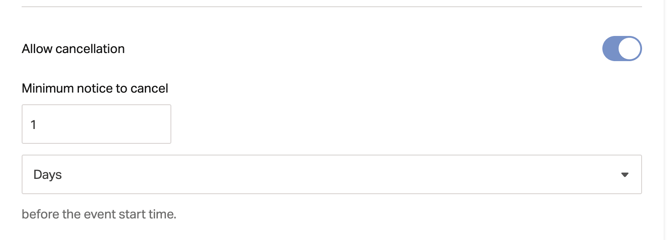
- Toggle “Allow cancellation” ON
- Set the minimum notice required before a client can cancel
- Save and Continue
Example:
If you set 1 day, clients must cancel at least 24 hours before the appointment.
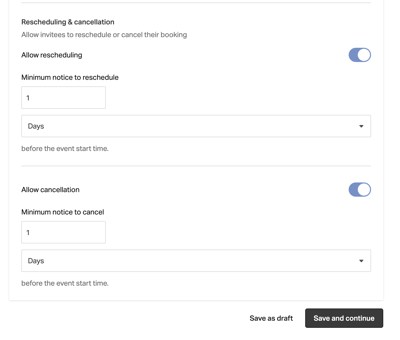
Note: Reschedule and cancel options are turned on by default for new 1:1 products to 1 day. For existing 1:1s, these settings will remain off until enabled manually. See below for default settings.
Understanding Minimum Notice
The minimum notice setting helps protect your time by preventing last minute changes.
You can choose the time frame in:
- Days
- (or other available units depending on your setup)
Pro Tip:
Set longer notice periods if you need more time to prepare, or shorter windows if you want to offer more flexibility.
What Your Customers Will Experience
When these settings are enabled:
- Clients will see options to reschedule or cancel their booking
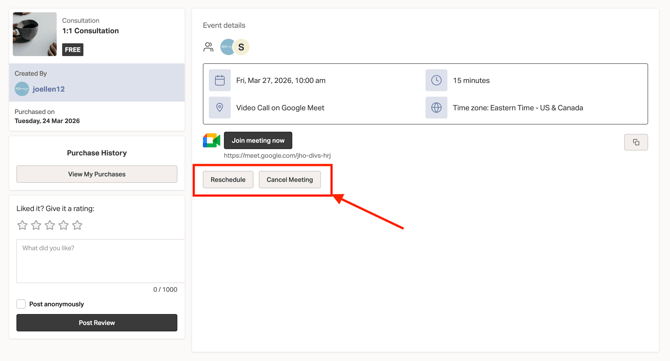
- These options will only be available within the time limits you set
- If they try to make changes too close to the appointment time, they’ll be restricted
Use rescheduling and cancellation settings to set clear expectations with your clients. Choose a notice window that fits your workflow, balance flexibility with boundaries, and revisit your settings as your business evolves.