
Overview
Plan Report gives you a clean summary of your scheduled and published content for any date range. It's useful for presenting your content plan to clients, stakeholders, or your team.
How to Open Plan Report
- Go to the Calendar view.
- At the top of the left panel, click Plan Report (next to the "All Posts" filter).
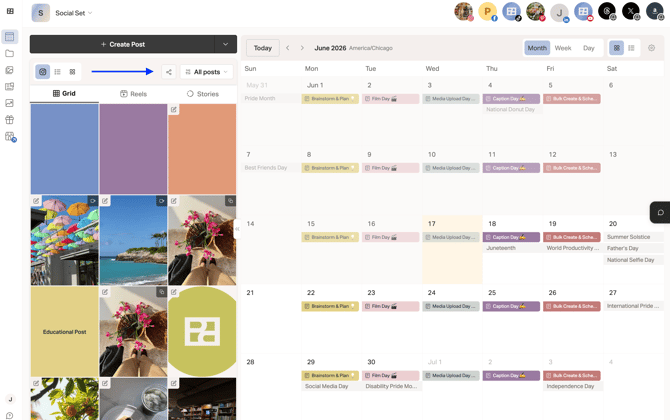
3. Your Plan Report will generate.
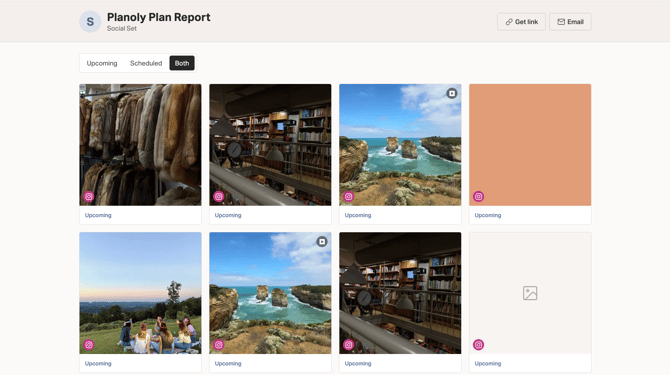
What's in the Report
The Plan Report shows:
- All scheduled posts and upcoming posts
- Post thumbnails and captions
- Which social channel each post is going to
- Post status
Sharing the Report
To share the report with a client or team member:
- Generate the report
- Copy the link ( expires in 7 days ) or send an email
Shared reports are view-only — recipients can't edit your posts.
Tips
- Run Plan Report at the start of each week to review what's going out
- Share with clients for content approval before posts go live
- Use it to spot gaps in your content calendar