
Overview
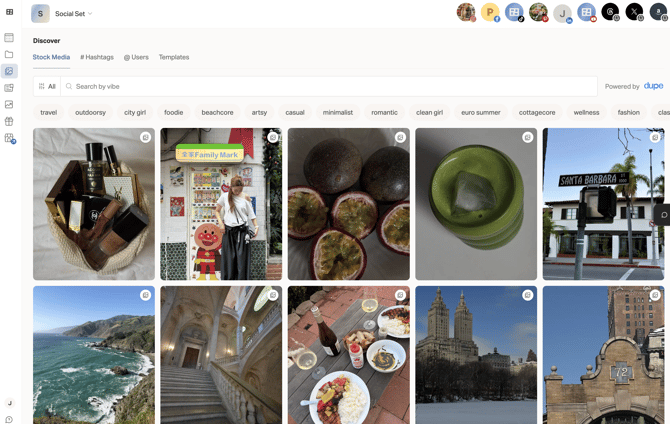
Discover is your content inspiration hub. Access it from the left sidebar to find stock media, build hashtag groups, explore accounts, and browse templates.
How to Access Discover
Click the Discover icon in the left sidebar (compass icon). It has four tabs.
Stock Media
Browse and search free stock photos and videos to use in your posts.
- Search by keyword (e.g. "coffee", "travel", "fitness")
- Browse by vibe or category
- Click any image or video to preview it
- Click Use to add it directly to a new post or to your Media Library
All stock media in Discover is licensed for use in your social posts.
Hashtags
Search and save hashtag groups for your posts.
To search hashtags:
- Go to the # Hashtags tab
- Type a keyword to find related hashtags
- See post counts and related tags
To save a hashtag group:
- Select the hashtags you want
- Click Save Group
- Name your group
Saved groups appear in Keywords & Captions and can be inserted into any post caption.
Users
The @ Users tab lets you search and explore other accounts for inspiration or to find accounts to collaborate with.
- Search by username
- View recent posts from any public account
- Use this for competitive research or finding content inspiration
Templates
Templates are available as a monthly add-on. Once unlocked, you can access the full library from the Templates tab in Discover.
- Browse by month or scroll through the full library
- Click any template to preview it
- Use a template as a starting point and customize it for your brand
Tips
- Use Stock Media to fill content gaps when you don't have original photos ready
- Build hashtag groups for different content pillars so you can quickly add them to posts
- Check the Users tab to see what's performing well in your niche