Skip to content
English
  • There are no suggestions because the search field is empty.

What is Creator Store and How does it work?

Learn how Creator Store helps you sell products, services, and content directly from your link in bio.

Overview

Creator Store is Planoly’s all-in-one platform for selling products, services, and content directly through your link in bio.

When used alongside Social Planner, it allows you to manage your content and monetize your audience all in one place helping you create, promote, and sell seamlessly.

What Can You Sell?

With Creator Store, you can offer:

  • Digital products
  • Online courses
  • 1:1 consultations
  • Q&As
  • Livestreams
  • Memberships
  • Tips & subscriptions
  • Invoices
  • Merchandise

All managed from a single platform.

Why Use Creator Store?

  • Monetize your content and services
  • Create a professional storefront in your bio
  • Keep more of your earnings (no transaction fees on paid plans)
  • Seamlessly connect with Social Planner
  • Access a 30-day free trial (for Social Planner users)

Key Features

  • Built-in checkout and payments
  • Custom branding and design tools
  • Order and sales tracking
  • Automated customer emails
  • Team collaboration
  • Social set integration

Creator Store is accessible directly through your Social Planner workspace on web.

How to Link a Creator Store?

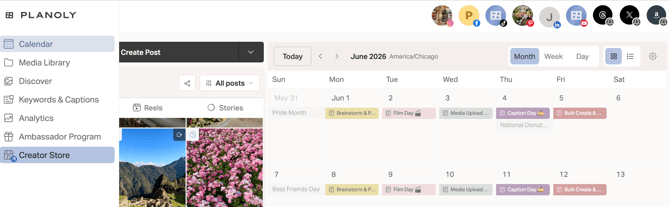
  1. Log into Planoly on a computer. If you are in the Instagram Planner, you will see the new Creator Store button at the top of the screen OR if you are in the Multi-Channel Workspace, you will be able to see it on the left panel.
    Screenshot 2025-04-16 at 4.57.03 PM
  2. To link a Creator Store account, you'll navigate to the Social Sets Manager page, and under the Creator Store column, click on the 'storefront' icon or arrow 

    Screenshot 2025-04-16 at 4.59.12 PM
  3. You will then be taken into Creator Store. If this is your first time signing up for Creator Store, once you choose a paid plan, you will be added to a 30-day free trial as a Social Planner user. Follow the prompts to get signed up. 
    Screenshot 2025-04-16 at 5.03.19 PM
  4. Once you have Creator Store linked to Social Planner, you will be directed to your Creator Store account (as shown below).
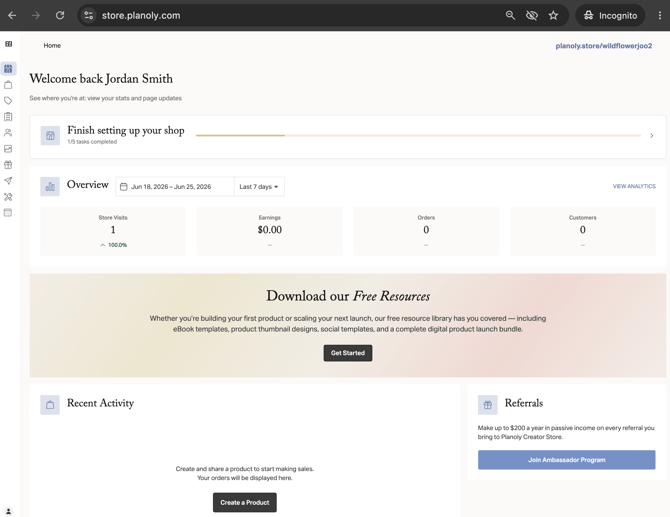
    Screenshot 2025-04-16 at 5.05.43 PM
  5. Next, to manage your Creator Store account in Social Planner, you will be able to click on the Storefront icon on the left panel 
    Screenshot 2025-04-16 at 5.06.32 PM
  6. From here, you can start managing your account on Creator Store through Social Planner!
  7. You are all set!

Please Note: If you already have an existing Creator Store account, make sure you are using the same email address when linking it to Planoly to avoid login or access issues.


How to Unlink Creator Store from Social Planner and Delete a Social Set

Important: Creator Store is connected to a Social Set. To unlink it, you must remove it through the Social Set settings.

  1. Log into Planoly on a computer web browser 
  2. Navigate to the Social Sets Manager page 
  3. Click on the 3 dots to the right of the social set you wish to delete your Snipfeed account from. This will remove the entire social set.  Screenshot 2025-04-16 at 5.10.12 PM
  4. From there, click on Delete to unlink your Creator Store. Screenshot 2025-04-16 at 5.11.14 PM
  5. [In steps 5-6, you're just removing Creator Store from Social Planner, not the entire social set.] On the next screen, choose Keep Creator Store (as long as you want to keep your Creator Store account active and separate from Planoly). 
    *If you wish to completely delete your Creator Store account AND Social Planner social set so you can no longer access either, you will choose the Delete button in red. These steps are shown below in step 7.  Screenshot 2025-04-16 at 5.12.49 PM
  6. To unlink just your Creator from Social Planner, follow the steps in the prompt to create an email and password for your Creator Store account if you do not already have one. Then click on Unlink Snipfeed. This will create a Creator Store account for you separate from Planoly so you can log into Creator Store directly through www.planoly.com
    image (1)-3
  7. Once you have unlinked Creator Store from Social Planner, if you want to delete your Social Planner social set, head back to the Social Sets Manager page on Social Planner and click on the 3 dots to the right of the social set. Click on Delete in red. Screenshot 2025-04-16 at 5.11.14 PM
  8. From there, enter the word delete and click on the red Delete button. This will delete the entire social set you are looking to remove from Planoly. You will not be able to get it back once it has been deleted.
     Screenshot 2025-04-16 at 5.16.11 PM

    You're all set!

    Your Creator Store is now either:

    • Connected and ready to use within Planoly, or
    • Unlinked and accessible separately

Please Note: If you do not want to delete your Creator Store account and continue using it outside of Social Planner, make sure to follow steps 1-6 above. 


Still Need Help?

If you need assistance with your Creator Store account, feel free to contact our support team at:
support@planoly.com