
Where do I get the app?
You can download the Planoly mobile app from your device’s app store. iPhone users can find it in the App Store, and Android users can download it from the Google Play Store. Simply search for “Planoly,” install the app, and log in.
What should I do first?
If you already have a Planoly account, you can simply log in and you can begin to navigate your current workspaces. If you have not created an account, you'll want to create one and we suggest beginning by setting up your social sets.
- Click the circle icon at the top left corner and the Social Sets tab will open.
- Click Manage in the top right corner to edit existing accounts.
- For the Multi-channel Workspace channels, you will want to click Mnaage and it will allow you to edit any of the social channels you have linked or need to link.
- For Instagram planner, you will click edit to make updates to that username.
- Once edits have been made, you will click done.
If you need to make changes to your social sets, like adding a new social set or removing one, we suggest logging in on a web browserto complete this as you may need to upgrade ordowngrade your billing first.
How do I auto-post on the mobile app?
Multi-Channel Workspace
- Open up the Planoly mobile app
- Switch into your workspace
- Click on the '+' at the bottom to add a post
- Choose Social Channels, add your media, caption, hashtags, etc., and select which type of post you want (i.e. Grid Post, Reel, or Story)
- Choose a date and time to schedule the post and toggle on auto-post
- Once your post is ready to go, click on Schedule at the bottom
- You should see your post show up in the grid with a blue 'S' and a paper airplane on it to show that it has been successfully scheduled for auto-post!
Instagram Planner
- On the Planoly mobile app, click into a post or click on the '+' at the bottom to add a new post
- To schedule, go ahead and choose a date and time and make sure the auto-post toggle is turned on
- Once this is complete, click on Save at the bottom of the window
- To check if this is properly scheduled for auto-post, in the Scheduled tab, you will need to make sure the post has a blue 'S' with a paper airplane in the top left corner. If it doesn't have one or both, then you will need to try rescheduling it again.
- When you see the blue 'S' with a paper airplane, your post has been successfully scheduled for auto-post
How do I manually post from the mobile app?
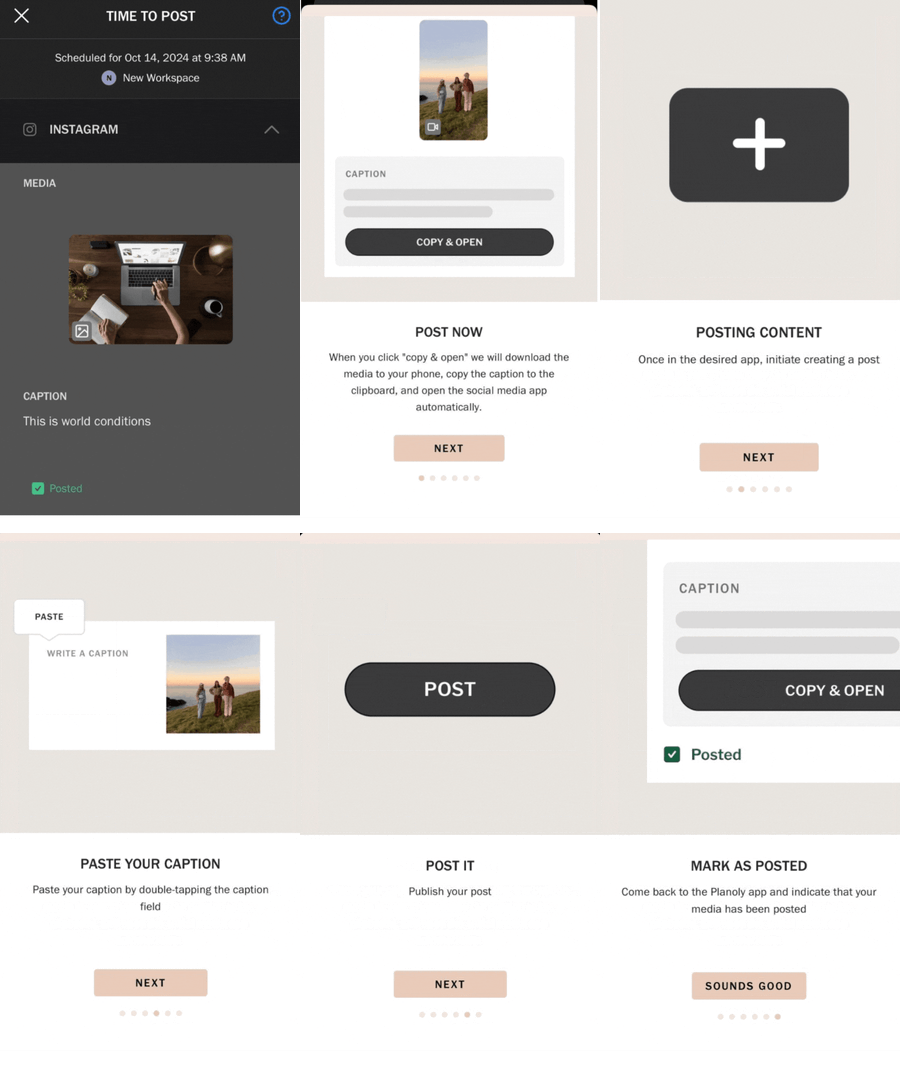
- To manually post, at the scheduled time of your post, you will receive a mobile push notification (as long as you have these turned on via the mobile app) to whichever social channel you choose when scheduling your post. Tap on the notification to open your post details in the Planoly Mobile App.
- When you click “Copy & Open”, we will download the media to your device, copy the caption to the clipboard, and open the social media app automatically.
- Once in the desired app, initiate creating a post.
- Upload the media. It will be the most recent photos and videos added to your phone app.
- Paste your caption by double-tapping the caption field.
- Finally, publish your post and come back to the Planoly app, and indicate that your media has been posted!
Planoly Pro Tip:
-
Step #6 is important to make sure the post is confirmed as posted. After you publish, come back to the Planoly app, and indicate that your media has been posted. If this step is not completed, the post will remain on your Planoly grid as scheduled.
- When posting via Post Now or push notification, as soon as you click the link or notification, your post is removed from your grid and placed in your History (found in the menu on the mobile app). Once you post it, Instagram then sends the image back to your Planoly grid as a posted image.
- In the multi-channel workspace, immediate posting ("Post Now") is not available. Instead, you can schedule posts with a reminder notification that alerts you when it's time to manually publish the post via the app. These scheduled posts must be set at least 5 minutes in the future.
How do I access and create drafts on mobile?
1. Log into your Planoly account on the mobile app
2. Select the first icon in the top right-hand corner of your Instagram planning space
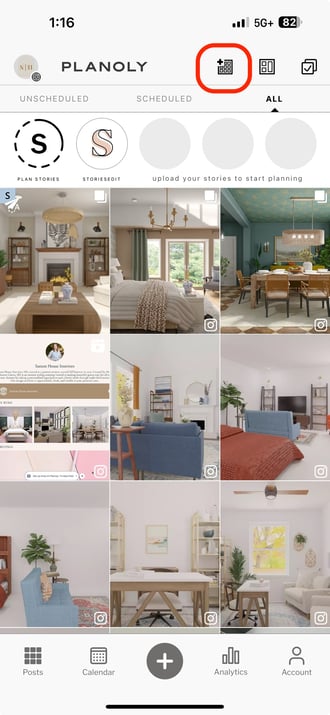
3. View all of your Drafts/Collections
4. To Create a New Draft/Collection, tap on the (+) icon
5. Name the Draft/Collection, click Add
7. To add an image to the Draft/Collection, click on the Draft/Collection, tap on the (+) icon
9. Select a Source, Add, Upload
12. Select Back to view all Drafts/Collections